If the keyboard is enabled, some keys can be used to control the animation. The following table gives an overview. Sometimes it may be necessary to click in the animation image with the mouse, before the java applet gets the focus and the keys are effective.
Note: The keys on the keypad may not work.
| Key | Function | |
| Running | Stopped | |
| SPACE-BAR | Stop | Restart |
| Dot (.) | Stop & Set forward play | Step forward & Set forward play |
| Comma (,) | Stop & Set reverse play | Step backward & Set reverse play |
| Plus (+) | Increase animation speed | |
| Minus (-) | Decrease animation speed | |
| Null (0) | Set initial animation speed | |
| (R) or (r) | Toggle play direction: backward/forward | |
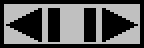
A mouse click somewhere in the animation image has the same function as a hit on the SPACE-BAR. The animation is stopped or restarted. A panel is shown, if the click panel is enabled and the animation is stopped by mouse click. The panel has the following form:
This panel can be used to advance single steps forward or backward by
mouse click. A click on the left triangle results in a step backward. Additionally
the play direction is set to reverse play. Clicking the right triangle
brings a step forward and the play direction is set to forward play. The
panel can be moved within the image by clicking in the middle area and
dragging it to the new position.
Back to main page